
Turn any image into a bead chart that is easier to build
This page keeps the core bead workflow focused on three steps: upload the source, generate the AI preprocess image, then generate the bead image.
AI preprocessing before conversion
Raw photos often collapse into muddy charts. Preprocessing removes gradients, noise, and distracting backgrounds first.
Cleaner bead silhouettes
Flat regions and darker outlines survive downscaling better, which helps the final bead chart stay readable.
Fewer accidental near-duplicate colors
Compressing the source image into a smaller intentional palette usually produces a cleaner bead chart with fewer muddy transitions.
Manual editing and export remain available
After preprocessing, you can still repaint, replace, remove background cells, and export the final chart with materials.
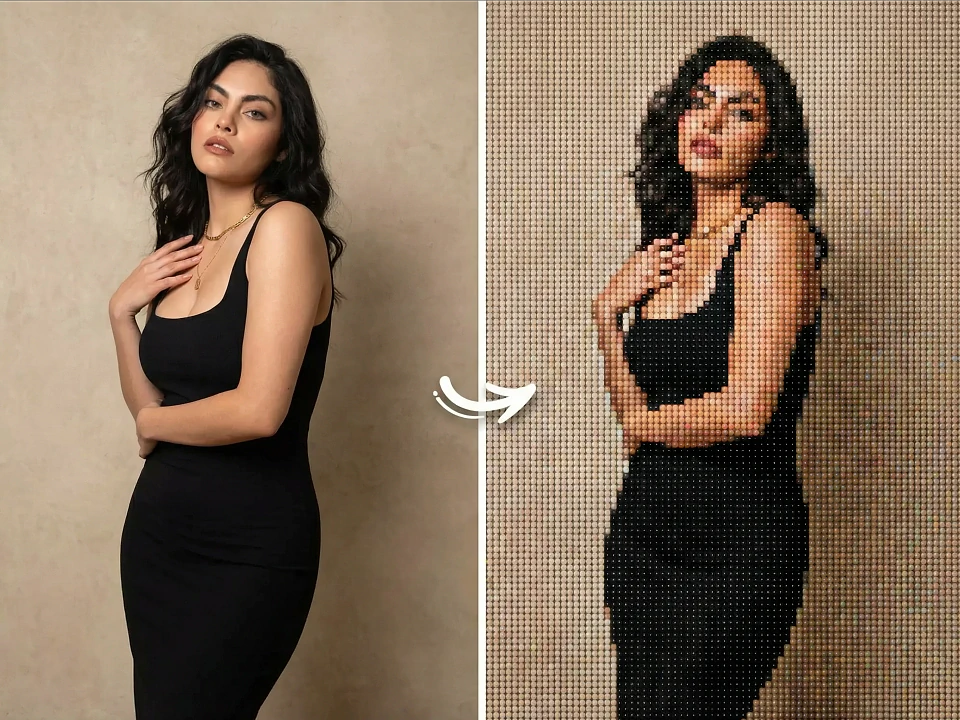
Turn any image into a bead chart that is easier to build
This page keeps the core bead workflow focused on three steps: upload the source, generate the AI preprocess image, then generate the bead image.
Workflow
Upload once, preprocess with AI, then generate the bead chart in place
Just three steps: upload the image, generate the AI preprocess image, then generate the bead image.
Upload the image
Generate the AI preprocess image
Generate the bead image
Source image
Best for photos with a clear subject but noisy backgrounds, soft lighting transitions, or too much texture.
Workflow
Bead chart workspace
The processed image is already loaded below. Continue with bead grid width, palette cleanup, and export controls.
Upload image or CSV
Supports JPG, PNG, WEBP, and CSV exported by the donor project.
This changes chart labels, materials, and export annotations without remapping colors.
Pattern preview
MARDUpload an image or import CSV to generate a chart using the donor workflow.
Manual editing
AI bead preprocessing prompt
This step converts the source into flatter artwork that maps more cleanly into a bead chart.
Fixed prompt
Convert this image into a simplified illustration optimized for perler bead crafting. Use flat, solid color blocks with no gradients, no shading, no lighting effects, and no texture. Limit the palette to a maximum of [8–15] distinct colors. Add a clean, continuous dark outline around the subject so the silhouette is clearly readable at small sizes. Remove the background completely (make it transparent or a single solid color). Simplify all details — keep only the essential shapes that define the subject. No anti-aliasing, no dithering, no soft edges. The style should resemble a clean cartoon or flat vector illustration, not a photograph.
Bead optimization tips
How It Works
How It Works
Upload the source
Start with the photo, pet portrait, avatar, or illustration you want to convert into bead art.
Run AI bead preprocessing
Seedream 5.0 Lite simplifies the image into flatter colors, cleaner outlines, and a bead-friendly silhouette.
Generate the bead image
Send the preprocessed result into the bead workspace, then adjust grid, palette, and export settings.
Why this bead workflow is more reliable
This page keeps the core bead workflow focused on three steps: upload the source, generate the AI preprocess image, then generate the bead image.
AI preprocessing before conversion
Raw photos often collapse into muddy charts. Preprocessing removes gradients, noise, and distracting backgrounds first.
Cleaner bead silhouettes
Flat regions and darker outlines survive downscaling better, which helps the final bead chart stay readable.
Fewer accidental near-duplicate colors
Compressing the source image into a smaller intentional palette usually produces a cleaner bead chart with fewer muddy transitions.
Manual editing and export remain available
After preprocessing, you can still repaint, replace, remove background cells, and export the final chart with materials.
Use Cases
Pet memorial charts
Pull pets out of busy scenes before converting them into cleaner bead art.
Avatar bead gifts
Strengthen the face and outline first, then generate a smaller bead pattern that still reads clearly.
Anime and IP bead builds
Useful for characters, badges, sprites, booth merch, and fan-art style bead projects.
Gift-ready bead patterns
Wedding photos, portraits, and keepsakes work better after AI simplification and color cleanup.